Simple Launcher ← All how-to guides

Onboarding and Intro

9 steps
  1. Welcome to Simple Launcher, Get started
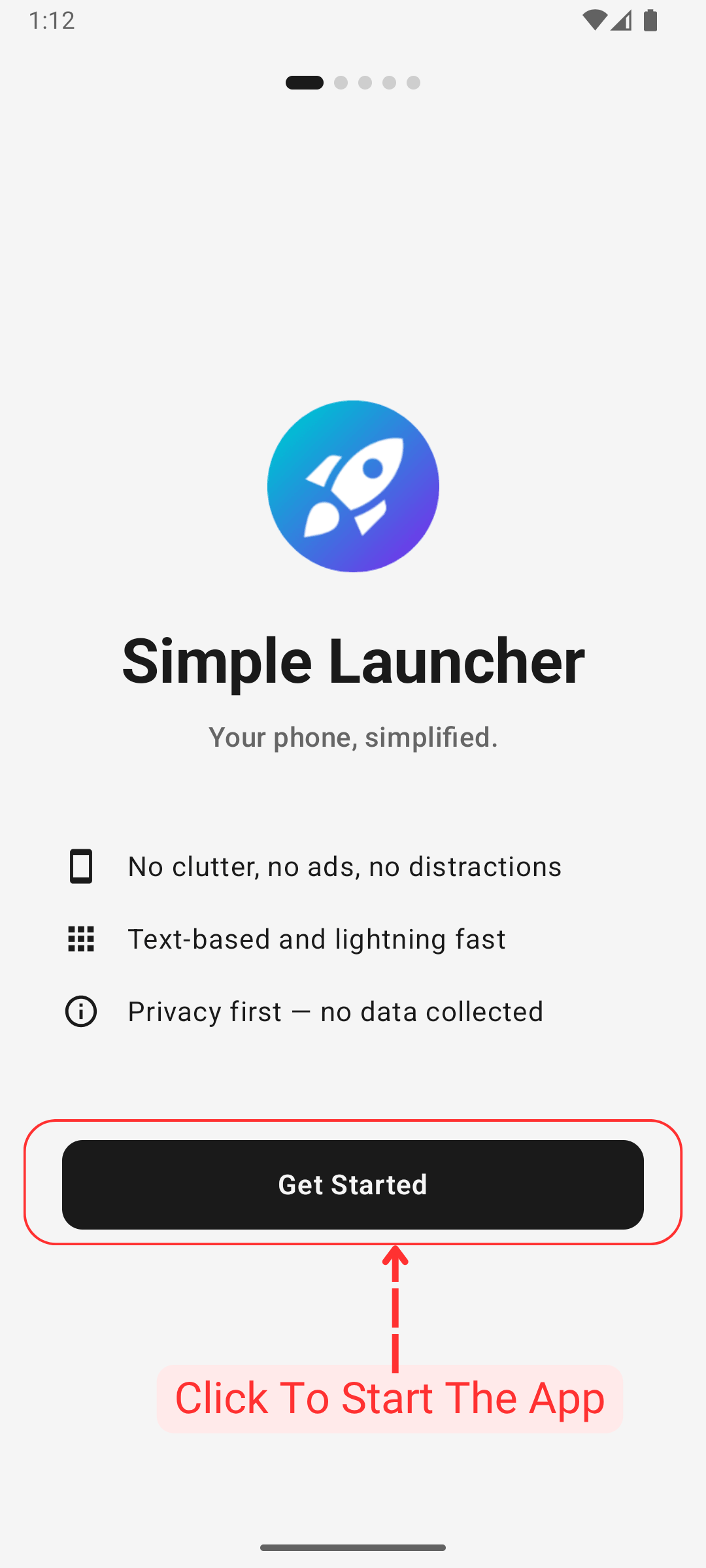
    Onboarding and Intro: Welcome to Simple Launcher, Get started
  2. Set Simple Launcher as default launcher for your phone
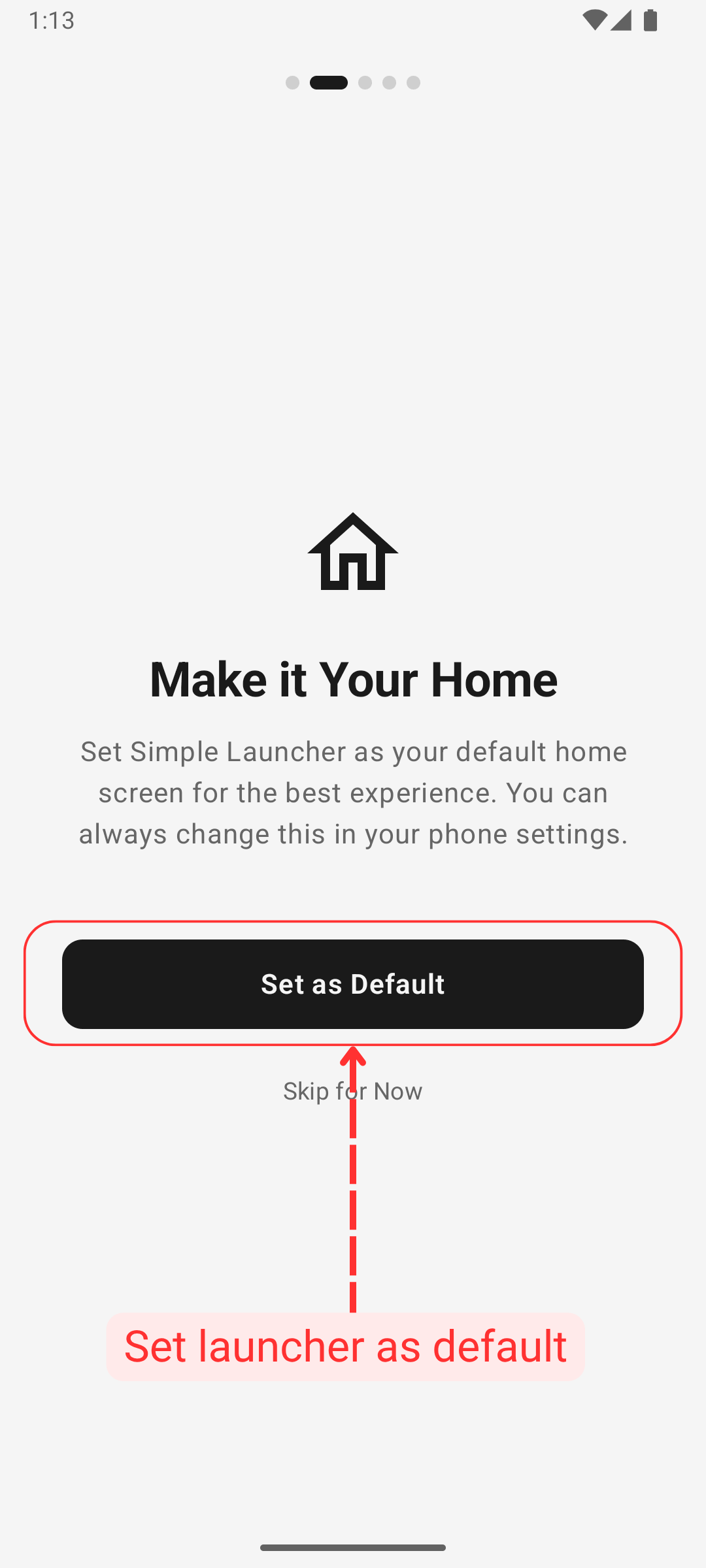
    Onboarding and Intro: Set Simple Launcher as default launcher for your phone
  3. Select Simple Launcher on the dialog and set as default
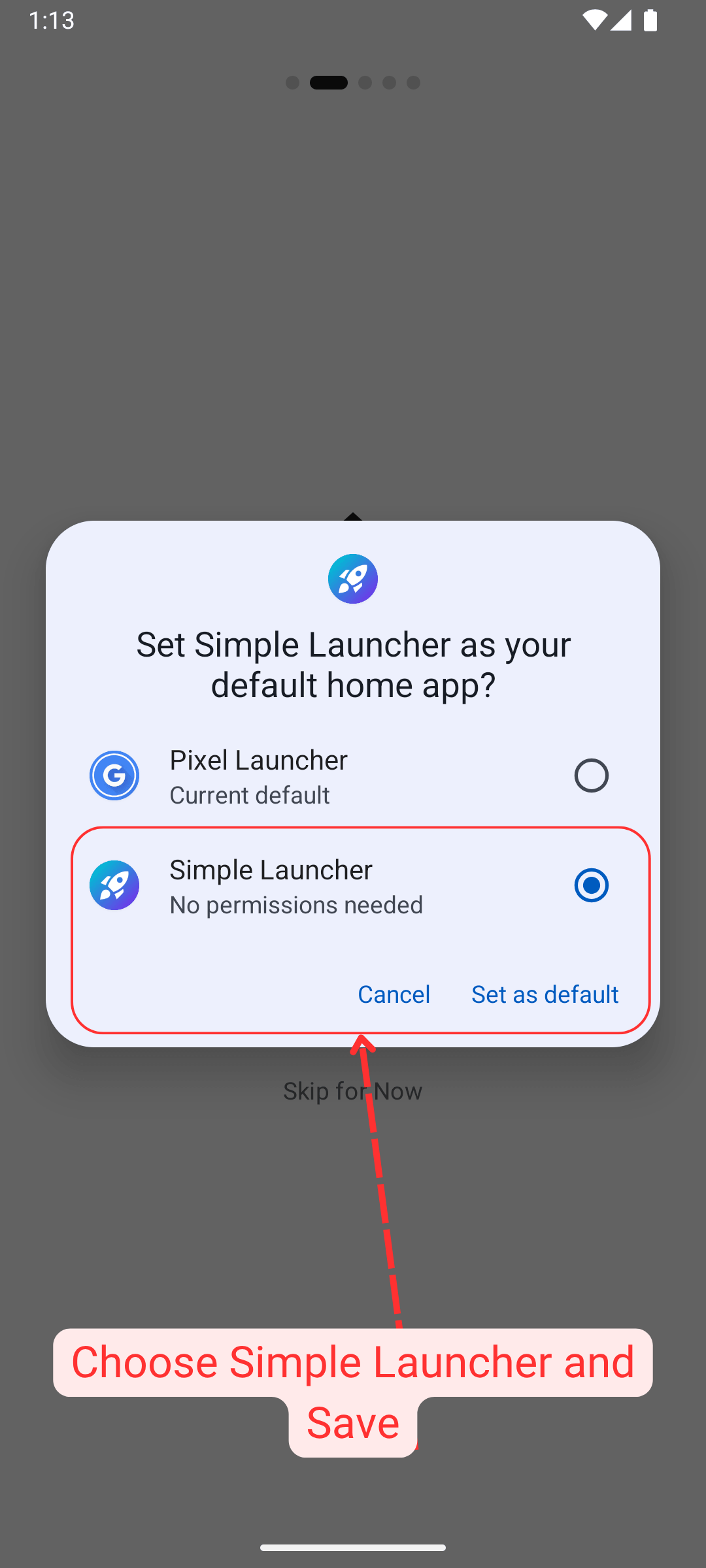
    Onboarding and Intro: Select Simple Launcher on the dialog and set as default
  4. Simple Launcher already selected as default
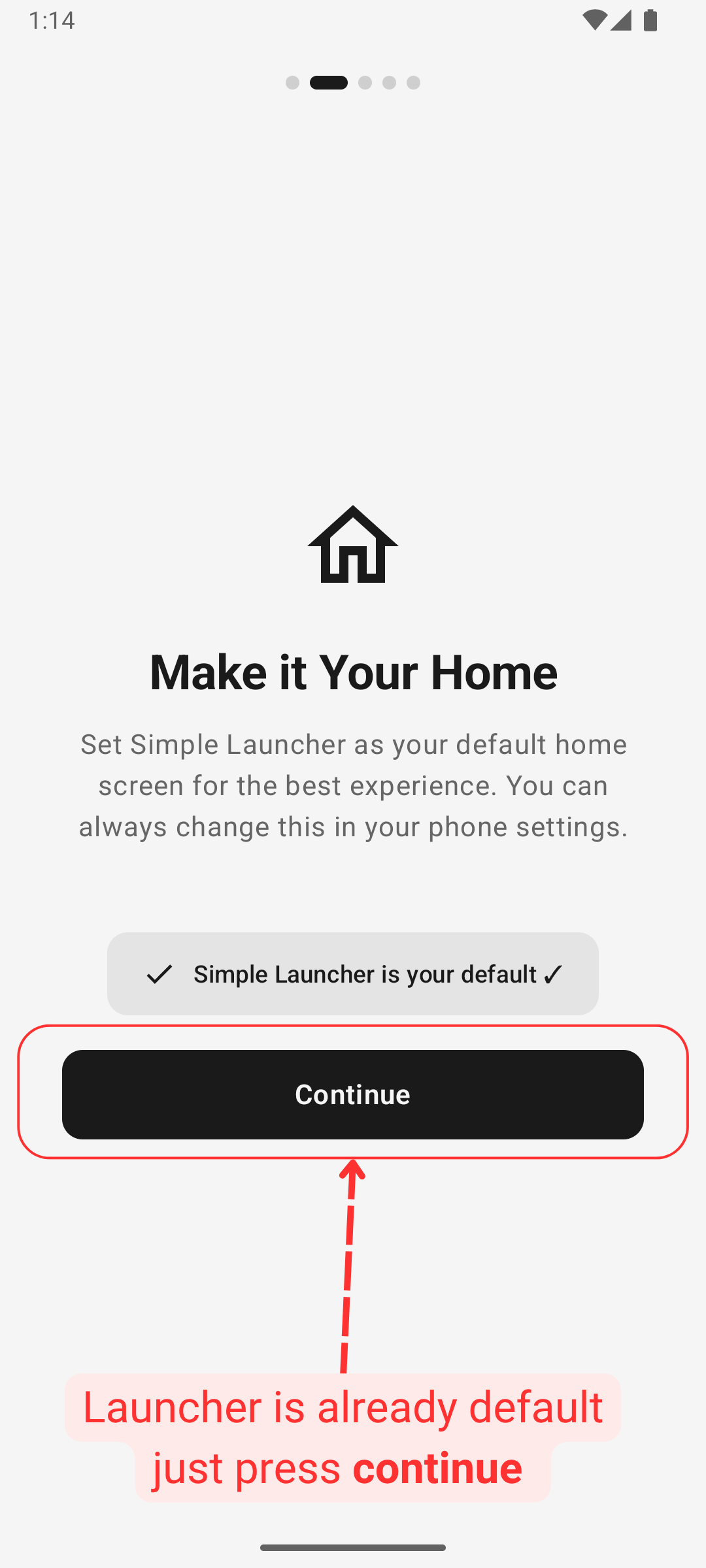
    Onboarding and Intro: Simple Launcher already selected as default
  5. Pin your favourite apps on the home screen
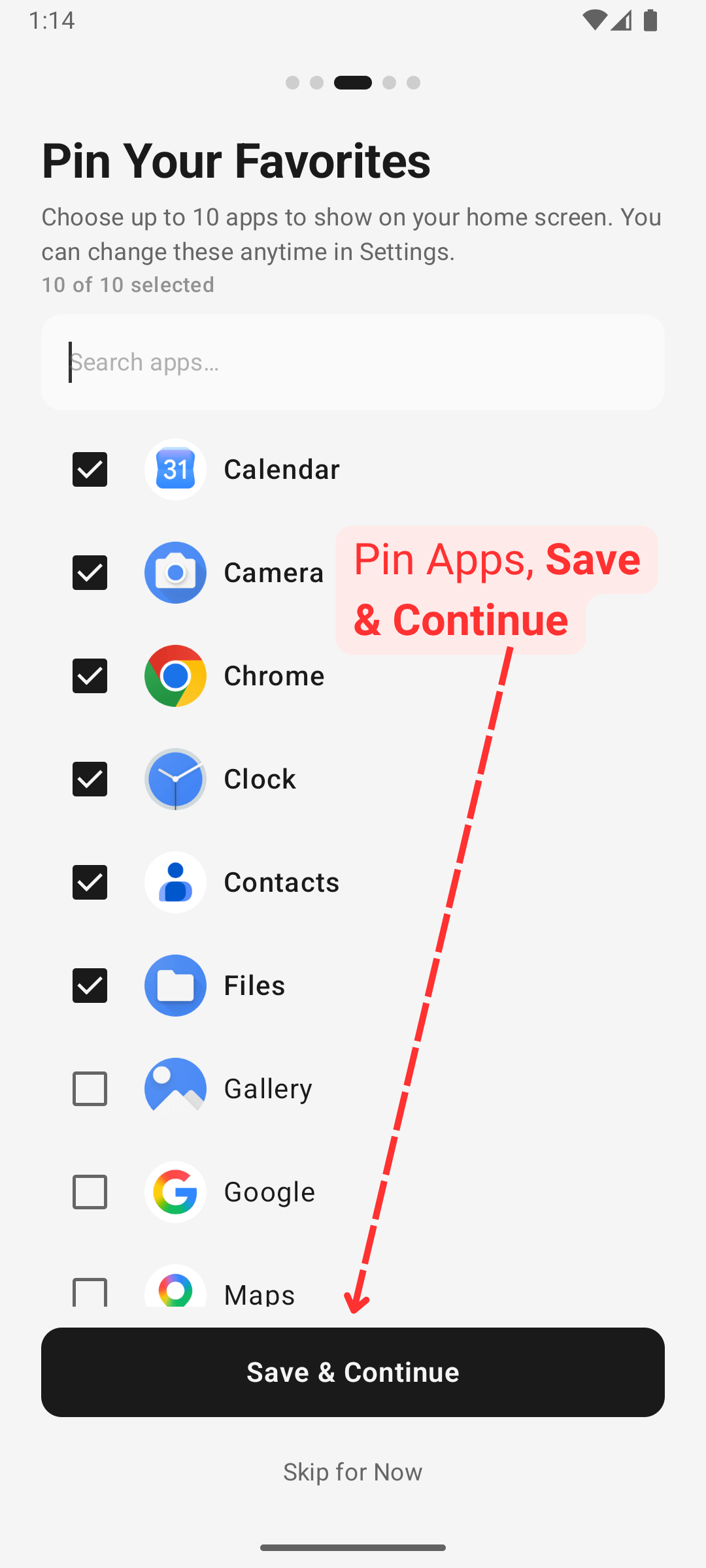
    Onboarding and Intro: Pin your favourite apps on the home screen
  6. You can see app usages, manage sleep hours and your digital wellbeing
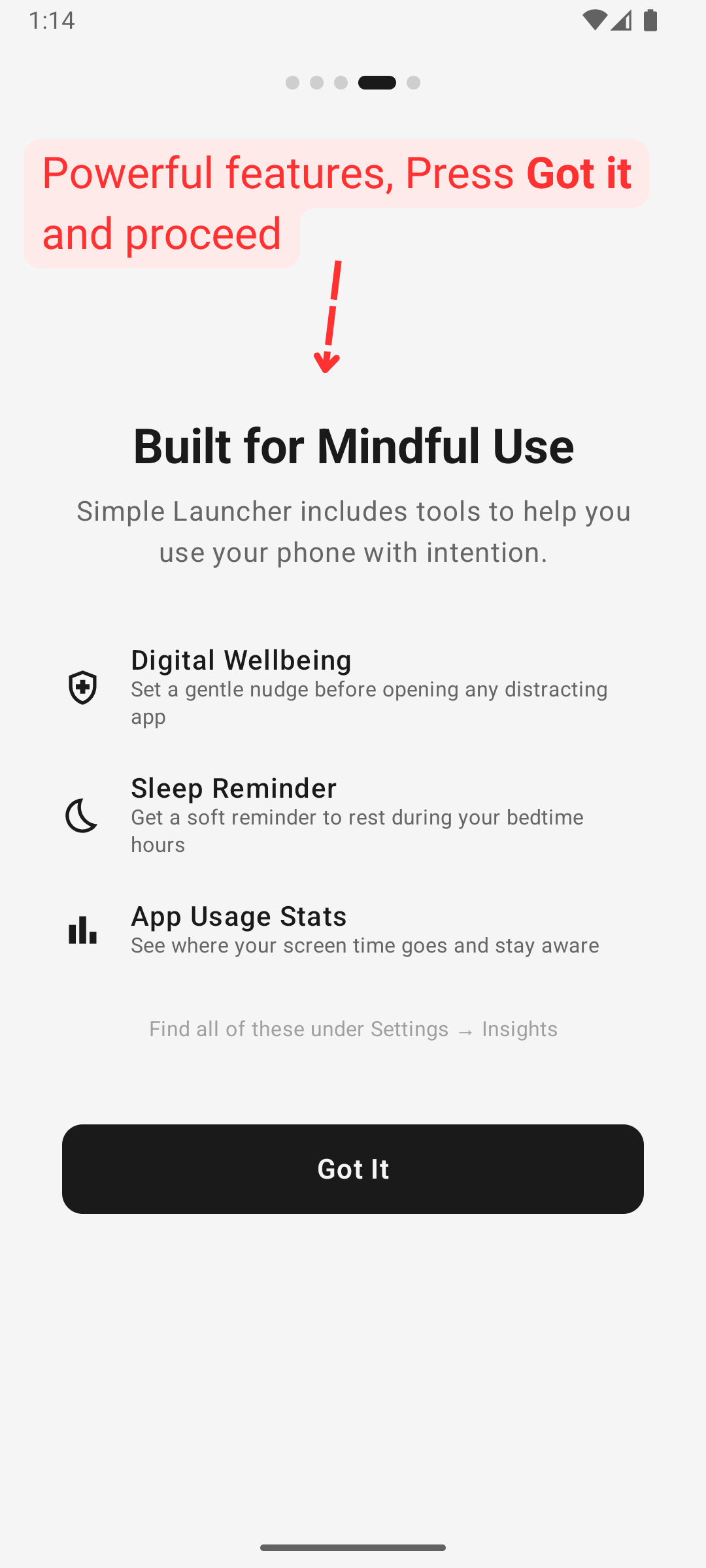
    Onboarding and Intro: You can see app usages, manage sleep hours and your digital wellbeing
  7. You are all set for now later you can adjust style to make it yours
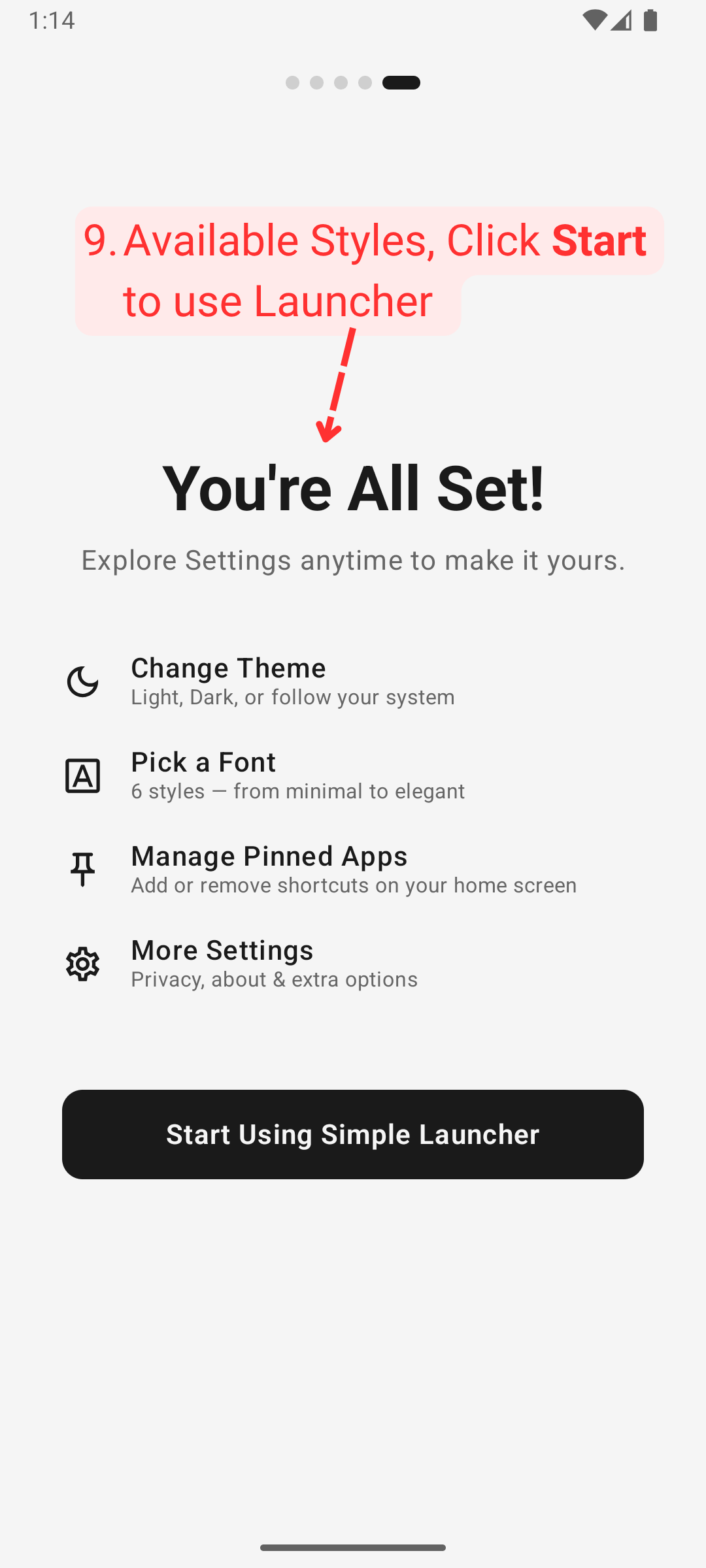
    Onboarding and Intro: You are all set for now later you can adjust style to make it yours
  8. Home of launcher with pinned apps as list and other options
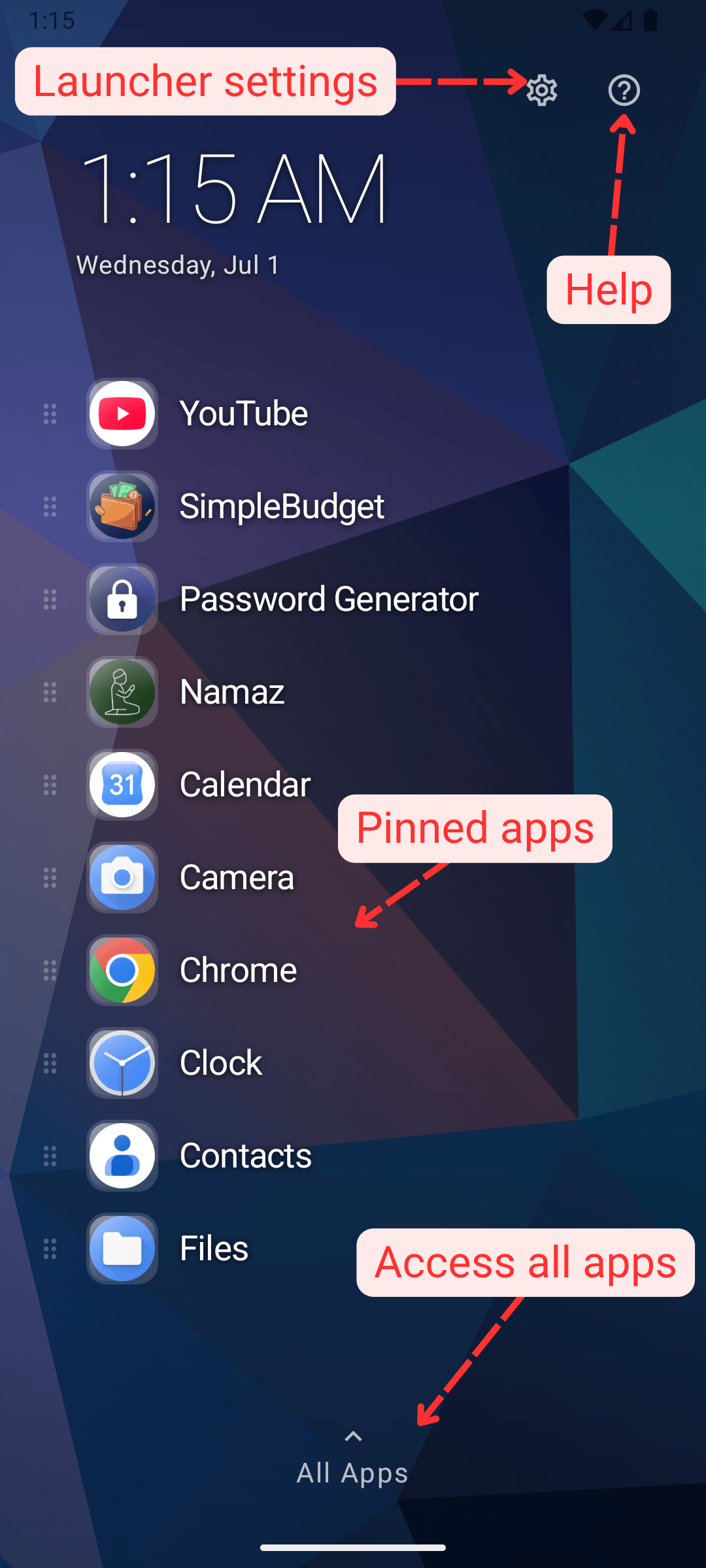
    Onboarding and Intro: Home of launcher with pinned apps as list and other options
  9. Home of launcher with pinned apps as grid and other options
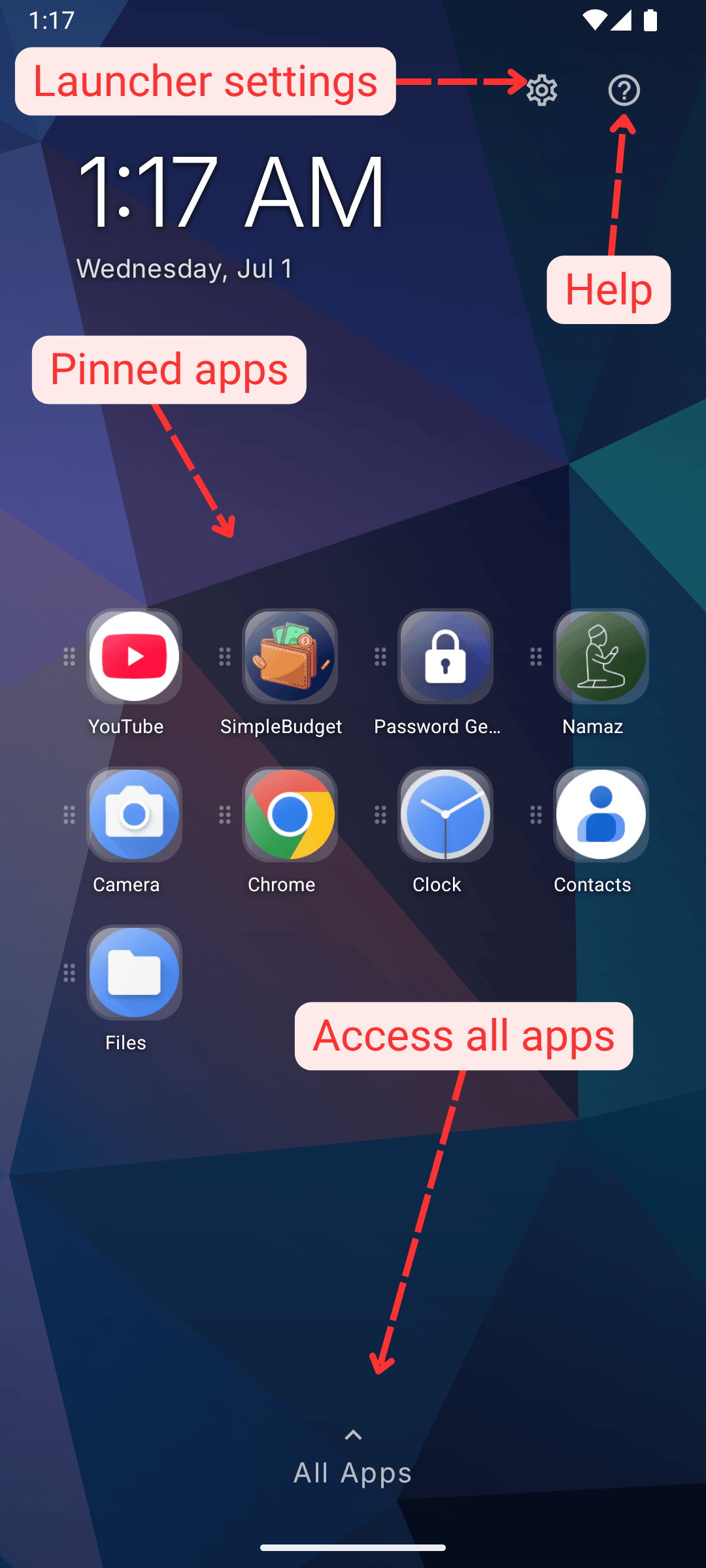
    Onboarding and Intro: Home of launcher with pinned apps as grid and other options